
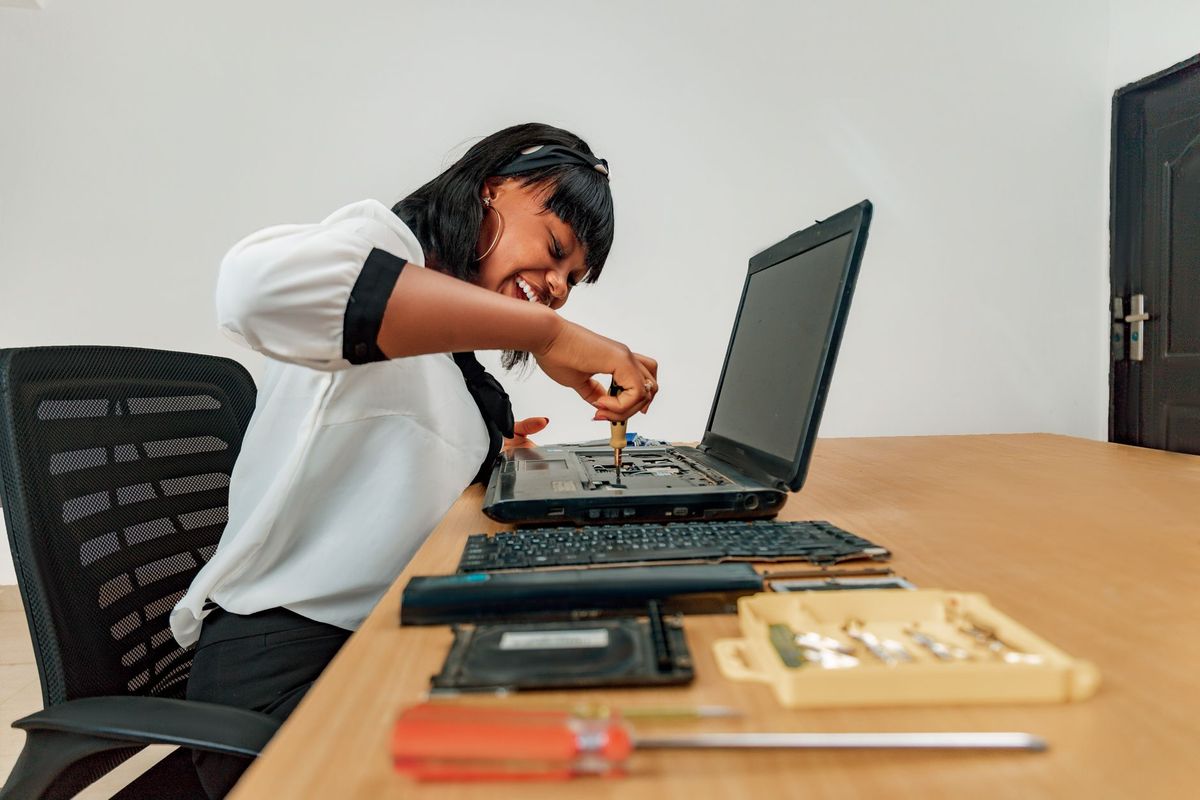
Computer Problems Are Usually Fixable
Is your laptop taking ten minutes to start, dropping the Wi-Fi during a video call, or showing pop-ups you cannot explain? These are common frustrations for computer owners throughout Jacksonville, FL, especially when heat, humidity, aging hardware, and busy home networks all contribute to the problem.
At BNT PC Repair, we have spent more than 27 years helping local residents and businesses get dependable technology working again. Our team provides laptop and desktop repair, malware removal, data recovery, upgrades, Wi-Fi troubleshooting, and business IT support. We are proud of our 5-star rating across 14 Google reviews, and we serve neighbors in Riverside, Avondale, San Marco, Murray Hill, Arlington, Mandarin, and surrounding areas.
This guide covers the problems we see most often and the safe steps you can try first. If a fix involves opening a computer, handling a failing drive, or removing a serious infection, stop before making the situation worse and let an experienced technician diagnose it.
Why Jacksonville Conditions Can Affect Your Computer
Jacksonville's heat and humidity are hard on electronics. A laptop used on a bed or couch can pull in dust and restrict airflow, while a desktop near a window, garage, or damp area may collect moisture and debris more quickly. Over time, clogged vents and dried thermal compound can cause high temperatures, loud fans, random shutdowns, or sluggish performance.
Your network can also become complicated as households add streaming devices, security cameras, smart TVs, game consoles, and work computers. A weak router location or outdated equipment may look like an internet provider problem when the real issue is inside the home. We can test the connection, signal strength, cabling, and router configuration instead of guessing.
1. Slow Computers in Jacksonville, FL
A computer that was fast when new can become frustratingly slow after years of updates, full storage, unnecessary startup programs, or failing hardware. Before buying a replacement, check these basics:
- Restart completely: Restarting clears temporary memory problems that sleep mode does not fix.
- Check free storage: Keep at least 15–20% of the primary drive available. A nearly full drive can slow updates, searches, and everyday applications.
- Review startup apps: Disable programs that do not need to launch with Windows or macOS.
- Install updates carefully: Operating system, browser, and security updates can improve stability, but back up important files first.
- Watch for hardware limits: An older hard disk drive, limited RAM, or an aging battery may be the real bottleneck.
In our 27 years of experience, replacing a traditional hard drive with a solid-state drive is one of the most noticeable upgrades for an older computer. An SSD can often make startup and application loading dramatically faster, while a memory upgrade helps when many browser tabs or programs are open. We evaluate compatibility before recommending parts through our computer upgrade service.
2. Wi-Fi Drops, Dead Zones, and Slow Internet
If the connection works in one room but not another, the problem may be wireless coverage rather than your internet plan. Routers placed inside cabinets, behind televisions, near large appliances, or at floor level often provide weaker service. Concrete, metal, and dense walls can also reduce the signal.
Try this process before changing providers:
- Restart the modem and router, then wait several minutes for both to reconnect.
- Test the same device near the router and in the problem area.
- Compare several devices. If only one computer disconnects, inspect that computer's Wi-Fi driver and network settings.
- Test with an Ethernet cable if possible. A wired test separates an internet service problem from a wireless coverage problem.
- Move the router to a central, elevated location and update its firmware.
Avoid repeatedly resetting the router without recording its settings. That can erase custom passwords, port forwarding, parental controls, and smart-home configurations. Our Wi-Fi and network troubleshooting service is useful for homes in San Marco, Mandarin, Arlington, and other Jacksonville neighborhoods where multiple devices compete for coverage.
3. Pop-Ups, Suspicious Messages, and Malware
A legitimate security notification should not demand gift cards, insist that you call an unfamiliar number, or prevent you from closing the browser. Those are common signs of a scam page or malware. Never give a caller remote access, payment information, or your email password because a pop-up says your computer is infected.
If you see suspicious activity:
- Disconnect from the internet if the computer is behaving aggressively or accounts may be exposed.
- Do not click additional warnings or download an unfamiliar cleanup tool.
- Write down the message and take a photo if safe to do so.
- Change important passwords from a separate, trusted device, beginning with email and banking accounts.
- Contact a professional if files are encrypted, browsers redirect, security software is disabled, or unknown accounts appear.
At BNT PC Repair, malware removal includes diagnosis rather than simply deleting one visible program. We check browser extensions, startup entries, scheduled tasks, security settings, and signs of credential theft. You can learn more about our virus and malware removal service before bringing in a laptop from Riverside, Avondale, Murray Hill, or anywhere else we serve.
4. Overheating, Crashes, and Unexpected Shutdowns
A hot computer is not automatically failing, but repeated overheating shortens component life and can cause freezes or shutdowns. Keep laptops on a hard, flat surface instead of a bed or cushion. Make sure vents are not blocked, and do not use household vacuums directly on sensitive components because static electricity and excessive suction can cause damage.
Back up your files before investigating repeated crashes. Then note whether the issue happens during video calls, gaming, printing, charging, or a specific application. Those details help identify whether the cause is thermal, driver-related, power-related, or hardware-related. Professional internal cleaning typically takes about one to two hours when no parts are needed; deeper diagnostics or parts replacement may take longer depending on availability.
5. Lost Files, Failing Drives, and Backup Gaps
Clicking sounds, disappearing files, very slow folders, repeated repair messages, or a computer that cannot find its operating system can indicate drive failure. Stop using the computer if the data is important. Repeatedly restarting a failing drive can reduce the chance of recovery, and do-it-yourself recovery software may overwrite the evidence it needs.
A good backup follows the 3-2-1 approach: keep three copies of important data, on two different types of storage, with one copy off-site or in a protected cloud account. Test backups by opening several files; a backup that has never been tested is only a promise. Our data recovery and backup service can help determine whether a drive is readable and establish a safer backup routine for home or business systems.

Know When a Repair Is Safer Than a DIY Fix
Simple steps such as restarting, freeing storage, moving a router, and installing reputable updates are reasonable first checks. However, stop troubleshooting when a computer contains irreplaceable photos, tax records, customer files, or business data and begins showing drive errors, encryption demands, or repeated crashes.
We provide straightforward explanations before recommending work. Depending on the problem, a basic diagnosis may take 30–60 minutes, while malware cleanup, drive cloning, or hardware repair can require several hours or a return visit. We will explain whether repair, upgrade, recovery, or replacement makes the most financial sense rather than pushing unnecessary parts.
Frequently Asked Questions
Should I replace my slow computer or repair it?
Not necessarily. If the computer has a healthy processor and adequate memory, an SSD upgrade, cleanup, or operating system repair may provide several more useful years. BNT PC Repair evaluates the hardware, age, software needs, and upgrade cost before recommending repair or replacement.
Can you fix Wi-Fi problems in my Jacksonville home?
Yes. We troubleshoot router placement, wireless interference, signal coverage, device settings, cabling, and internet handoff issues. We serve homes and businesses in areas including San Marco, Mandarin, Arlington, Riverside, Avondale, and Murray Hill.
What should I do if I think my computer has a virus?
Disconnect it from the internet if possible, do not call a number shown in a pop-up, and avoid entering passwords on that computer. Bring it to BNT PC Repair for a proper malware and security review, especially if accounts, files, or business information may be exposed.
How long does a typical computer repair take?
A simple diagnosis or cleanup may take 30–60 minutes, while internal cleaning, malware removal, drive replacement, or data recovery can take several hours or more. We provide a clearer timeframe after identifying the problem and checking whether parts are available.
Are my files safe during a repair?
We treat customer data carefully and discuss backup or recovery steps before work that could affect storage. If a drive is failing, stop using the computer and tell us which files are most important so we can prioritize the safest recovery approach.